Google has responded to user feedback by bringing back two much-requested features in the Google Photos app that had been removed or changed during the summer. The perspective correction tool, essential for straightening photos of flat objects like documents or paintings, has been reinstated in the latest editor update. Additionally, the crop tool’s corner design has been reverted from rounded edges to classic 90-degree angles, improving the visibility of the entire image while cropping. These updates arrived in Google Photos version 7.55.0.835314738.
Perspective Correction Tool Returns to Google Photos
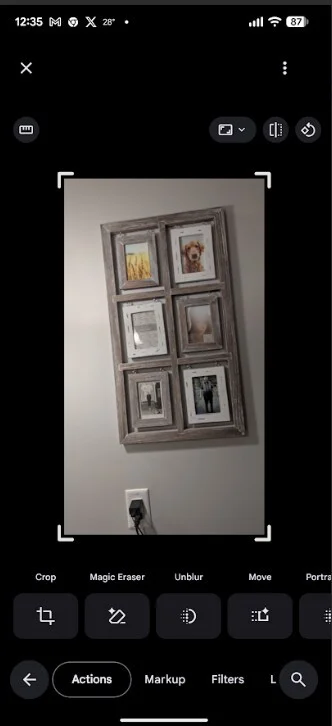
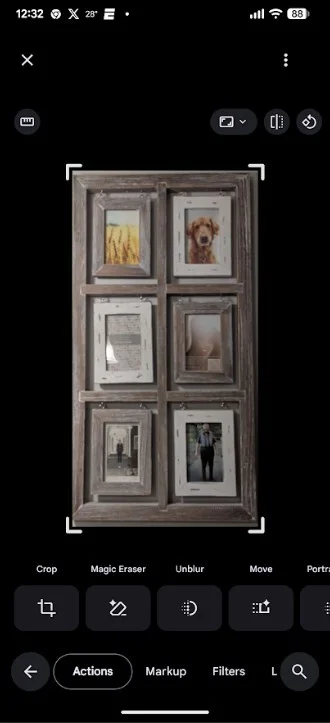
After hearing complaints from users on platforms like Reddit, Google announced that it was reintroducing the perspective correction tool into the new Google Photos editor. This tool allows users to manually correct the perspective of a photo by adjusting the lines to straighten skewed images, which is particularly useful when photographing flat objects at an angle to avoid glare.
One Google Photos user expressed frustration when the tool was initially removed, stating, "We like to use perspective correction when taking photos of paintings. We often have to go at angles off axis to avoid glare." The tool’s return is a welcome update for such users.
Community Feedback on Tool Usage
Current Poll Results (33 votes):
- Yes. Absolutely! – 72.73%
- No. Never. – 3.03%
- I can't say. – 24.24%
Crop Screen Corners Restored to Original Design
Alongside the perspective correction tool, Google has reverted the crop screen corners from rounded back to their original sharp 90-degree angles. This design change enhances users' ability to view their entire image clearly while cropping. Both updates became available in version 7.55.0.835314738 of the app.
How to Check Your Google Photos Version
If you’re running the new app version but haven’t noticed these updates yet, a server-side update might be required to activate them. To check your Google Photos app version, navigate to Settings > Apps > See all apps, scroll to 'Photos,’ tap on it, and scroll to the bottom of the app info page to find the version number.
Using the Perspective Correction Tool
To correct a photo’s perspective in Google Photos, open the photo you want to edit. Tap Edit > Tools > Crop, then tap the perspective correction icon in the top-right. Adjust the image lines manually with your finger until the photo looks properly aligned, then confirm by tapping the check mark at the bottom-right. Your photo will now be straightened and cropped as desired.