In the fast-evolving realm of technology, AI has taken center stage, especially with the emergence of advanced chatbots like ChatGPT and Gemini. While traditional voice assistants like Siri can manage tasks such as setting alarms and reminders, these AI-driven chatbots provide more comprehensive answers to a wide range of queries. Whether you are curious about current events or need conversion rates, ChatGPT and Gemini can offer detailed responses that go beyond simple facts.
If you find yourself seeking more insightful answers rather than relying solely on Siri or Google Assistant, integrating these AI tools into your daily smartphone usage can greatly enhance your experience. As an iPhone user, you can leverage these powerful chatbots to get the information you need, allowing Siri to handle basic tasks while leaving complex queries to AI.
Streamline Your Access to ChatGPT Using the iPhone's Action Button
The preferred choice for AI assistance on my iPhone is the ChatGPT app. If you own an iPhone 15 Pro, iPhone 15 Pro Max, or iPhone 16 series model (including iPhone 16e), you can effortlessly access ChatGPT by utilizing the Action Button located on the left side of these models above the volume controls. To set this up, navigate to Settings > Action Button, then scroll until you find the Shortcut option.
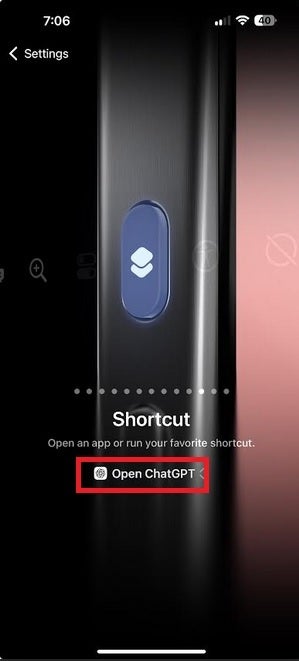
Set ChatGPT to launch with a long press of the Action Button. | Image credit-PhoneArena
Simply tap on the "Open ChatGPT" prompt displayed, select the ChatGPT option under My Shortcuts, and press the Open ChatGPT rectangle. After completing this setup, a long-press on the Action Button will directly open the ChatGPT app, where you can then type or voice your query. This efficient method allows you to swiftly gather information, such as where to find the best hot dogs in New York City.

Find cheap hot dog locations in New York City using ChatGPT. | Image credit-PhoneArena
Another valuable AI tool available is Google's Gemini. The iOS version of the Gemini app was released in November and can be downloaded for free from the App Store. After installing the Gemini app on your iPhone, you can also create convenient shortcuts on your Lock Screen with six widget options. To add these widgets, long-press an empty area on your Lock Screen until the Customization menu appears, then tap Customize at the bottom of the screen and select Lock Screen.
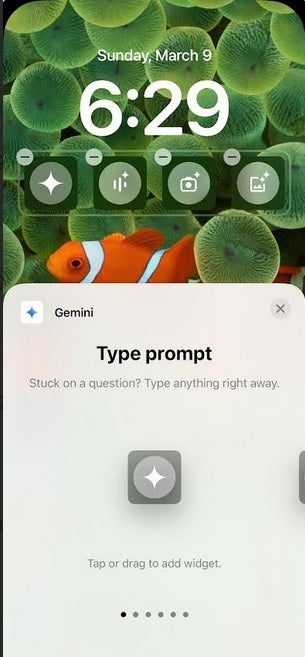
Add Gemini widgets to your iPhone's Lock Screen for quick access. | Image credit-PhoneArena
To modify your Lock Screen widgets, tap the rectangle surrounding the existing widgets below the clock. You will see a minus sign along with an 'Add Widgets' prompt. Select the minus sign to remove current widgets and scroll to Gemini in the 'Add Widgets' options. From there, you can choose which of the six available widgets to add below the clock. The options include:
- Type Prompt: This widget opens directly to the Gemini interface for typing or asking questions.
- Talk Live: Engage in a live conversation with Gemini.
- Open mic: Activates your microphone for setting calendar events and reminders.
- Use camera: Allows you to take a photo and gather information about it through Gemini.
- Share image: Lets you select an image for more information or to initiate discussions about the image.
- Share file: Facilitates sharing files to provide context for your queries.
Accessing AI Assistance Without Siri on Your iPhone
Once you’re done customizing, tap the "Done" button on the upper right corner of the screen.
Congratulations! You’ve now optimized your iPhone for quick access to ChatGPT and Gemini, ready to help with your queries. However, it’s important to keep in mind that AI chatbots can occasionally produce inaccurate responses—something referred to as "hallucination." Yet, in my personal experience, these instances are rare, and I find that using AI tools for questions generally surpasses using Siri.