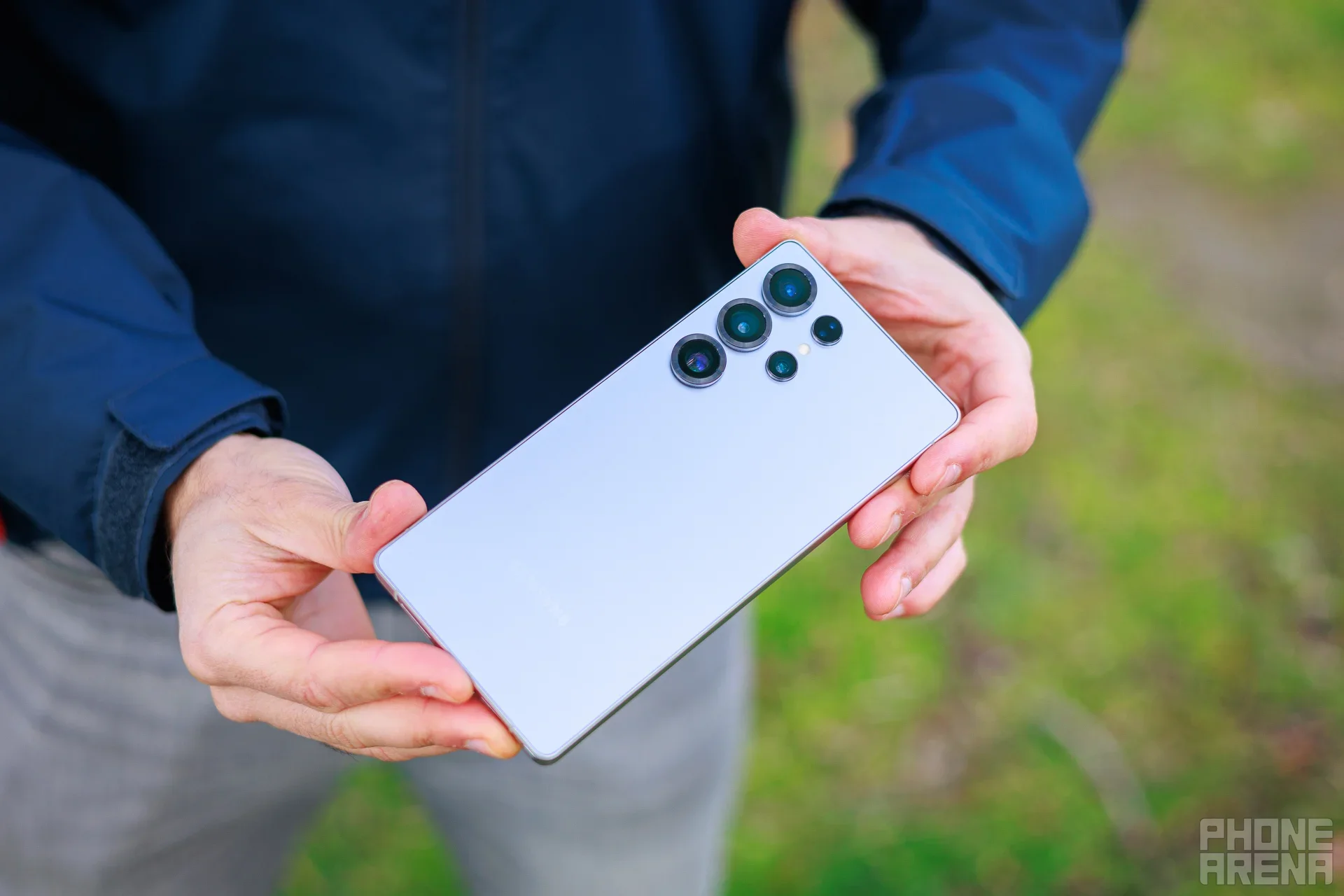
Smartphones are often seen as mundane, with many resembling one another in design and functionality. However, a unique and potentially game-changing technology is making a reappearance: eye-tracking. This article delves into the resurgence of eye-tracking in modern smartphones, particularly focusing on Honor's innovative approach with its Magic series. Join us as we explore how this exciting technology works, its practical applications, and its potential for future smartphone interfaces.
A Brief Journey Through Eye-Tracking Technology
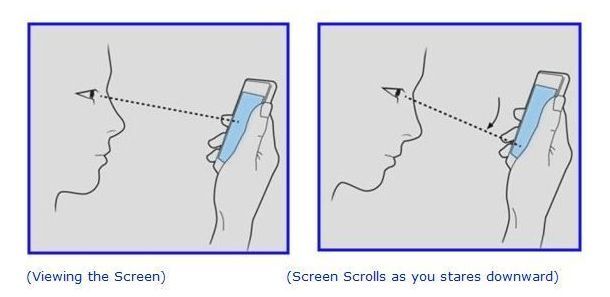
Many manufacturers have dabbled in utilizing front-facing cameras for user navigation, exploring options such as LG’s Air Motion and Google’s Motion Sense. Yet, Honor has taken a bold step forward by integrating eye-tracking technology into the core user interface of their devices.
How Honor's Eye-Tracking Works
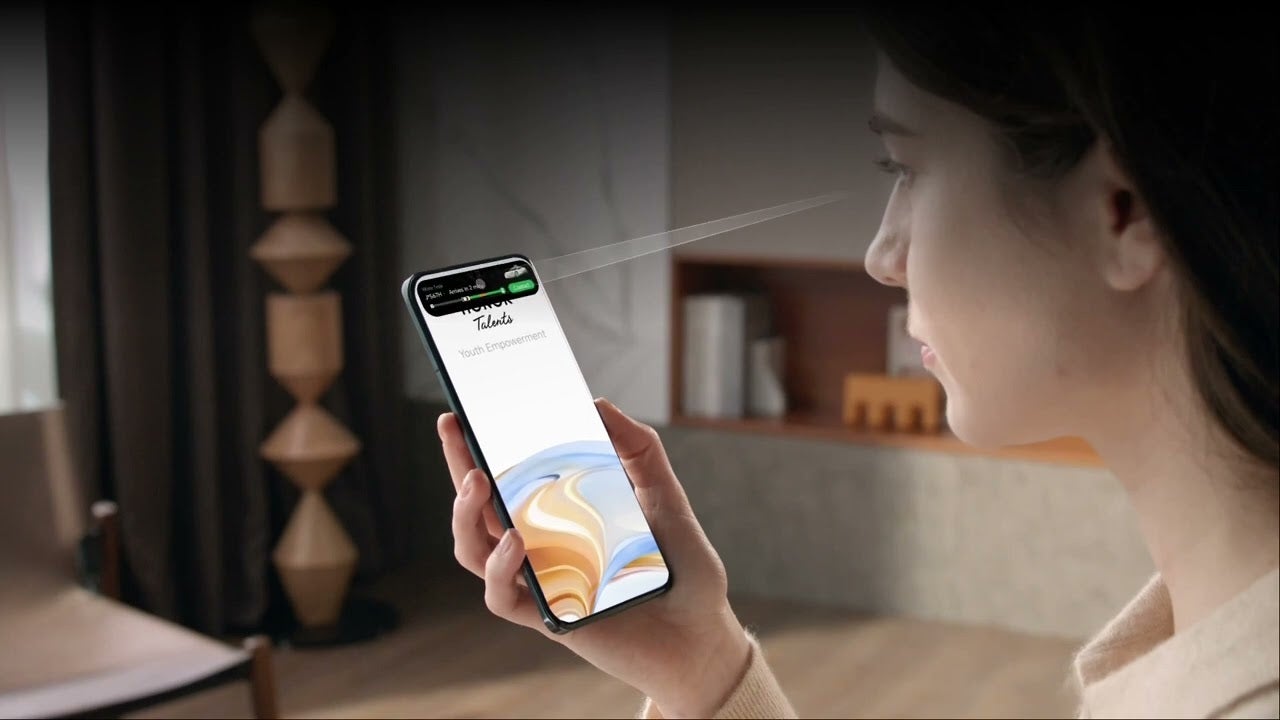
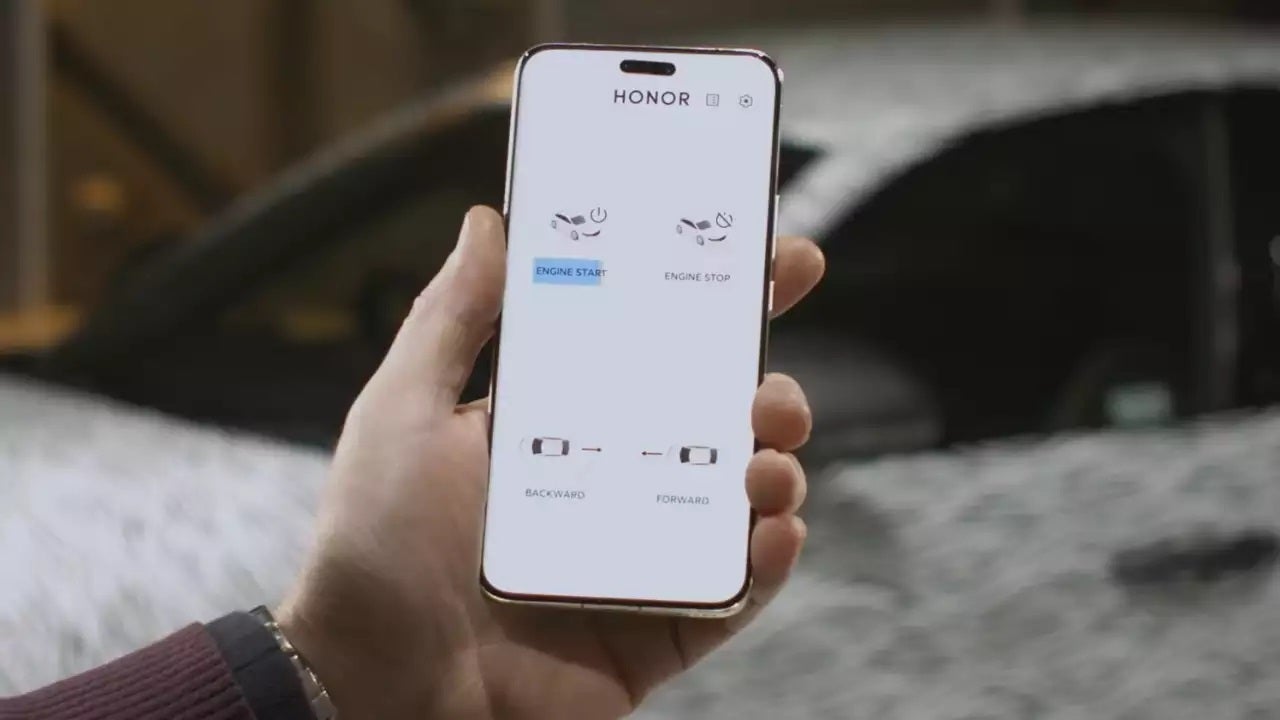
Would you trust eye control in various applications? | Image by Honor
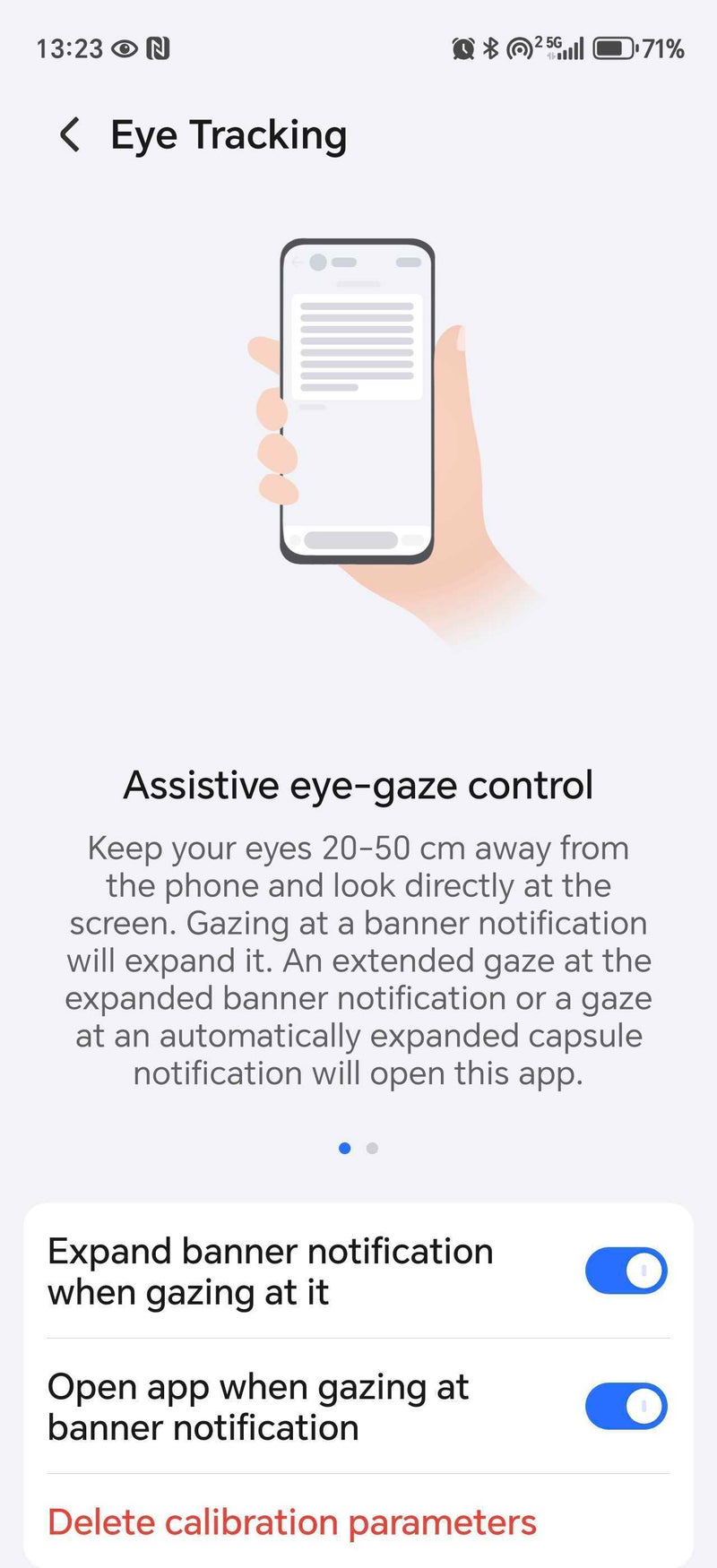
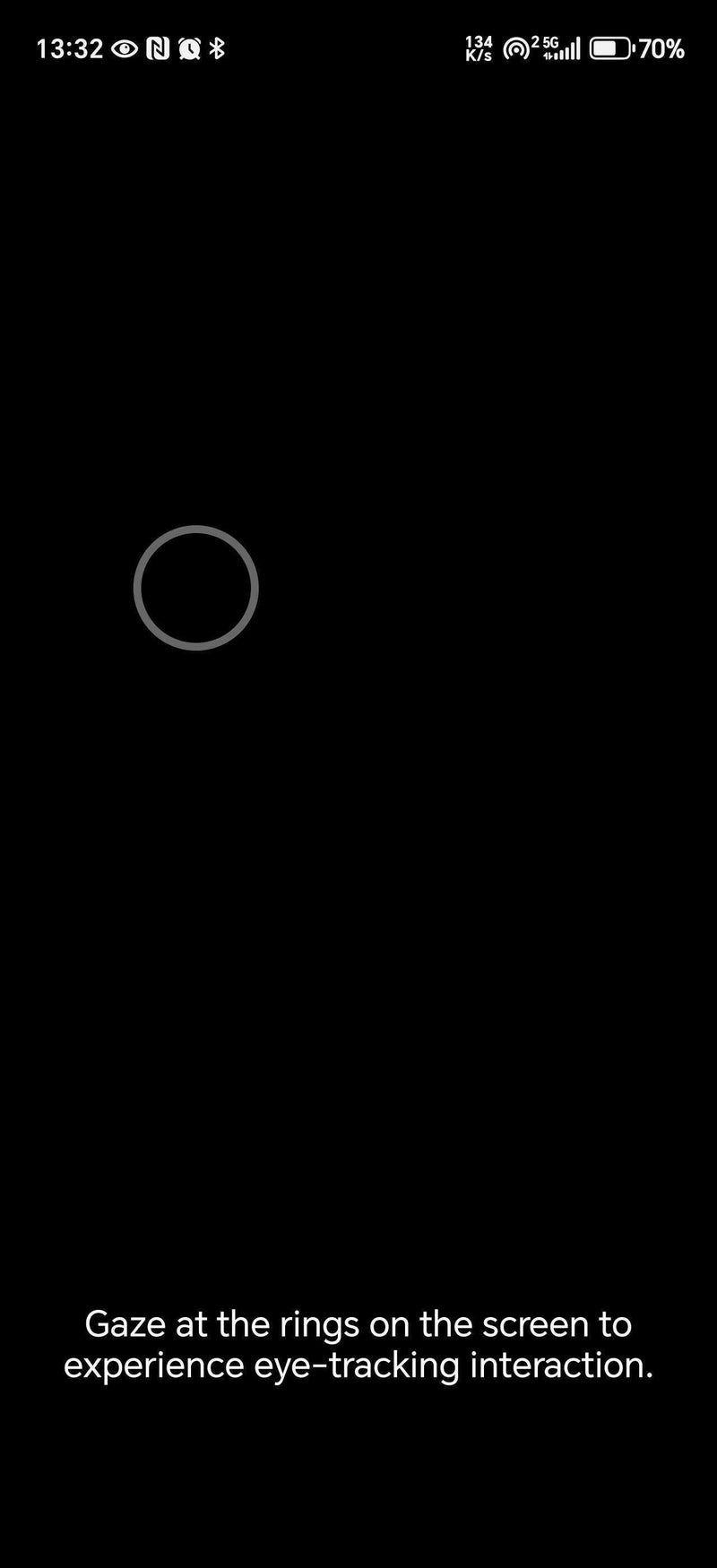
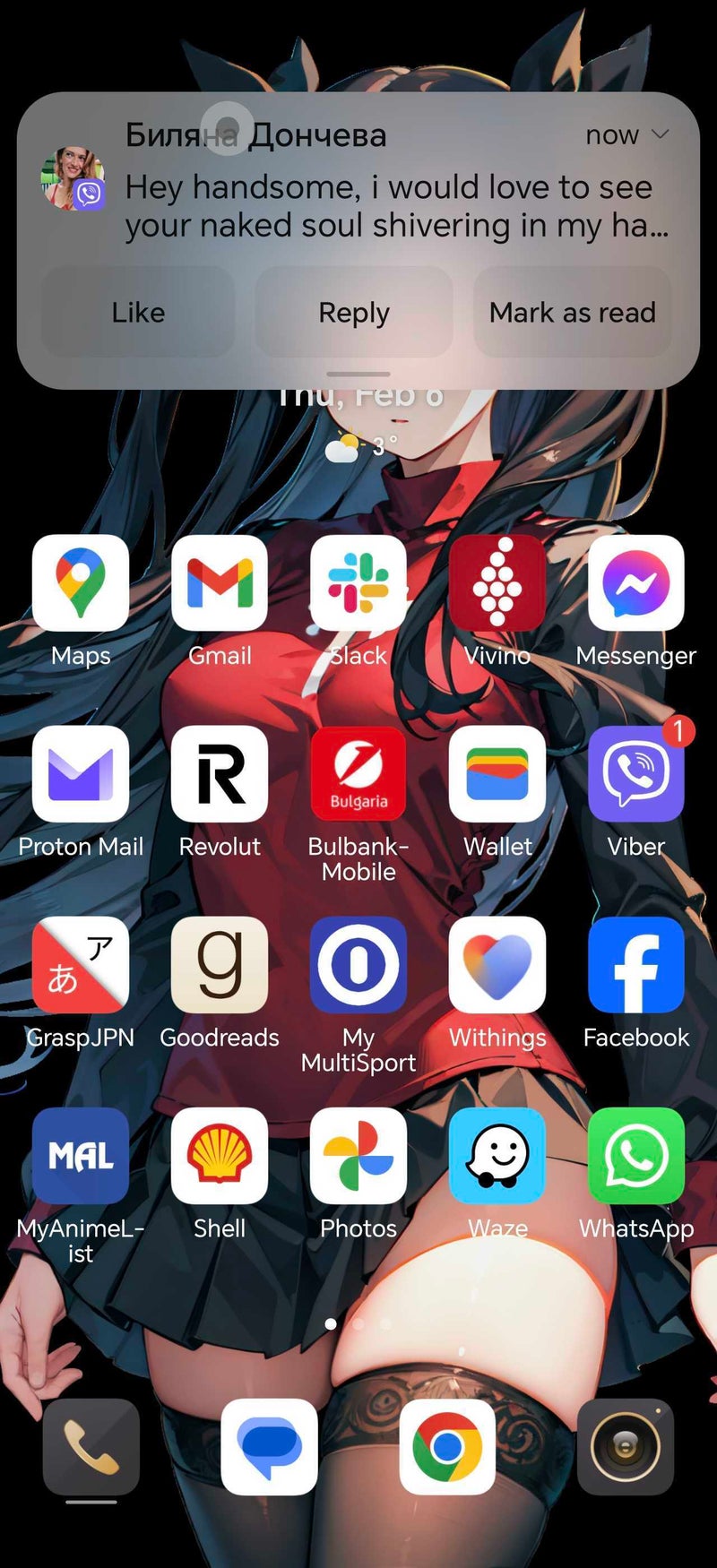
To get started with eye-control, users initially need to calibrate the system by focusing on targets that appear on screen. Once calibrated, notifications can be expanded simply by looking at them; prolonged gazes will result in opening the associated app. While seemingly straightforward, this intuitive method significantly enhances usability.
Evaluating Practicality
For those who prefer uninterrupted focus during work, utilizing gaze control for notifications keeps distractions at bay. The moment a device is handled, it often diverts attention away from essential tasks.
Eye-Tracking on iPhones and Android Phones
Android devices frequently incorporate similar eye-tracking features, but specific implementations may require additional apps for certain models.
Activating Eye-Tracking on iPhones
Navigate to Settings > Accessibility > Eye Tracking and enable the feature.
Calibrate Eye Tracking by following the on-screen instructions.
An on-screen pointer will track your eye movements once calibration is complete.
To perform an action, maintain your gaze on an item until the dwell timer completes.
Activating Eye-Tracking on Android Phones
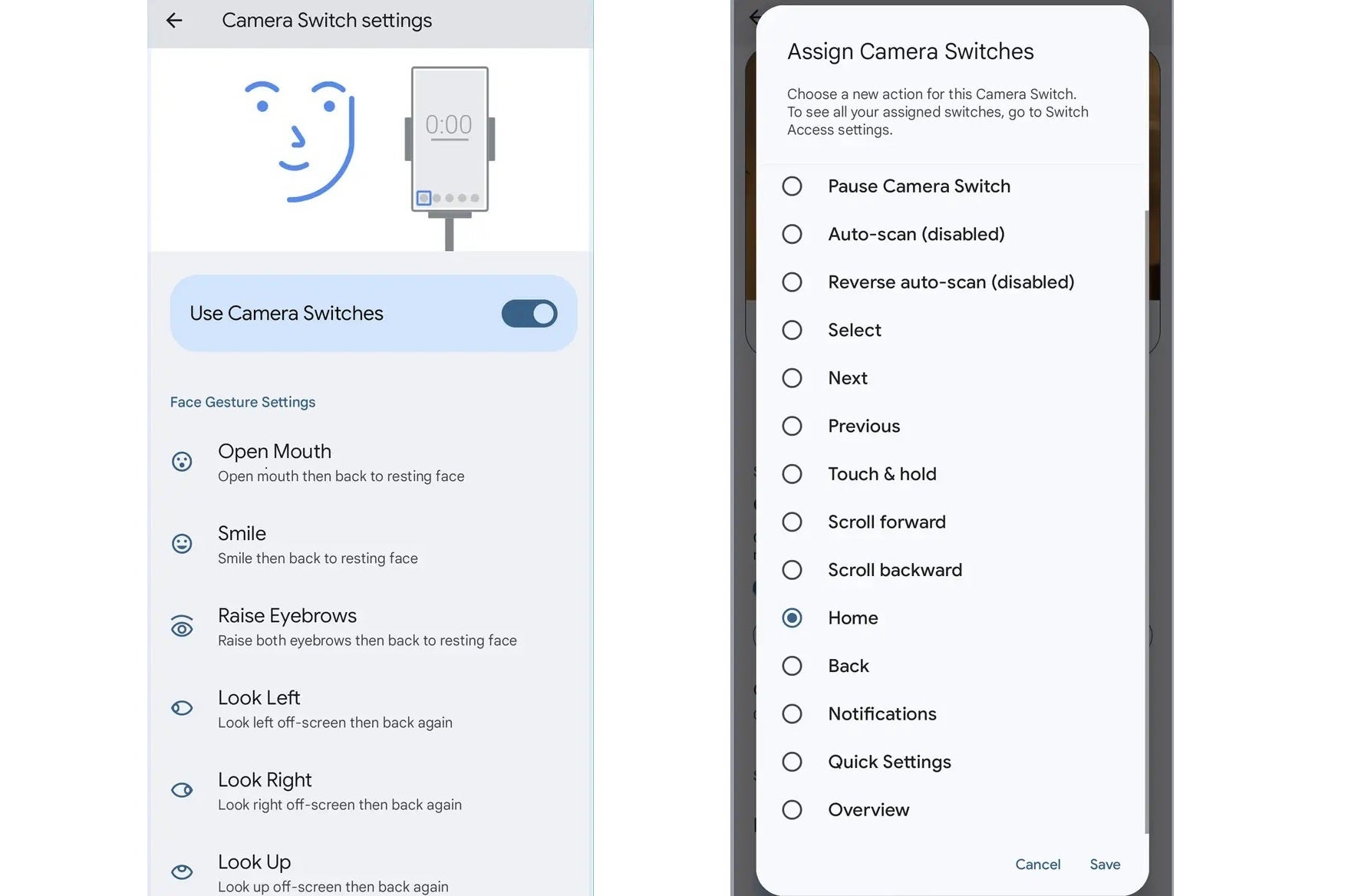
Access Settings > Accessibility > Switch Access (may require installation on specific devices) and enable usage.
Grant necessary permissions for functionality.
Go to “Settings” and adjust “Camera Switch Settings” to activate Camera Switches.
Experience various gestures to control the device hands-free.
While activating accessibility features is required for use, this may be slightly cumbersome for users, but it remains useful for individuals with disabilities for whom the technology is primarily designed.
Conclusion: A New Frontier
The future of eye-tracking holds tremendous promise compared to conventional voice control. For many, after a long day at work, the allure of speaking commands to devices diminishes. Eye control emerges as a user-friendly alternative that could redefine how we interact with technology.
Could eye-tracking be the next significant leap in smartphone technology? The discussion is open—feel free to share your thoughts!
 For those who prefer uninterrupted focus during work, utilizing gaze control for notifications keeps distractions at bay. The moment a device is handled, it often diverts attention away from essential tasks.