In today's digital landscape, the threat of cyber attacks is ever-present. To address these concerns, Apple introduced a feature aimed at providing extreme security for users at risk of high-level digital threats. Known as Lockdown Mode, this feature is a safety net for those who may be personally targeted due to their profession or status. Below, we'll outline how to activate Lockdown Mode on your iPhone and discuss the limitations it brings.
As emphasized by Apple, “Lockdown Mode is an optional, extreme protection that's designed for the very few individuals who, because of who they are or what they do, might be personally targeted by some of the most sophisticated digital threats. Most people are never targeted by attacks of this nature.” Enabling Lockdown Mode drastically limits your iPhone functionalities to safeguard your sensitive personal data and prevent unauthorized access.
With Lockdown Mode activated, your daily iPhone usage will be significantly restricted. For instance, message attachments are generally blocked—with allowances for certain images, videos, and audio. You will not see links or link previews in messages. Additionally, while browsing, some websites may load slowly, and others may fail to open altogether. Images from websites may not appear, displaying a placeholder icon instead, while some web fonts will be unavailable.
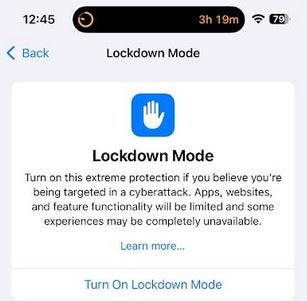
Lockdown Mode is an effective way to protect your iPhone from cyber threats. | Image credit-PhoneArena
FaceTime calls will be blocked unless you have previously communicated with the caller. Features like SharePlay and Live Photos will be disabled, and incoming invites for Apple services will be restricted to known contacts. Moreover, Game Center will not function while in this mode. Location data will be stripped from shared photos, and you must unlock your phone to connect it to accessories.
One of Lockdown Mode's key features is its heightened security procedures. For example, once activated, your iPhone will not automatically connect to non-secure Wi-Fi networks, and support for 2G networks is disabled. However, you can still make and receive phone calls and send or view text messages as well as access SOS emergency services. This stringent security can give peace of mind, even if it feels excessive for everyday usage.
It's important to note that Lockdown Mode is also available on your iPad and Mac. To activate Lockdown Mode on your device, head to Settings > Privacy & Security > Lockdown Mode. Switch on the Lockdown Mode toggle, and tap Turn On Lockdown Mode at the bottom. You will then be prompted to enter your device's passcode.
To exclude specific websites from Lockdown Mode, open Safari and navigate to the intended site. Tap the Page Menu button (located to the left of the address bar), select the three-dot More icon, and toggle Lockdown Mode off for that site. You must enable Lockdown Mode on your device first for this to work. To manage app exclusions or edit the list of exempt websites, go to Settings > Privacy & Security > Lockdown Mode, then select Configure Web Browsing. Disable the apps you wish to exclude from Lockdown Mode.
Only apps you have used since enabling Lockdown Mode will display with limited functionality. To modify excluded websites, tap Excluded Safari Websites > Edit.
While Lockdown Mode serves as an essential tool for a select group of users, it's important to remember that the vast majority of Apple device owners are unlikely to ever experience the need for such extreme measures. For those who do, Lockdown Mode acts as a powerful deterrent against advanced cyber threats.